Here new and existing LSS users can download the latest version of LSS DTM Software, and LSS 3D Vision for point clouds.
This latest version of LSS will keep itself up to date and should not require special permissions to do so.
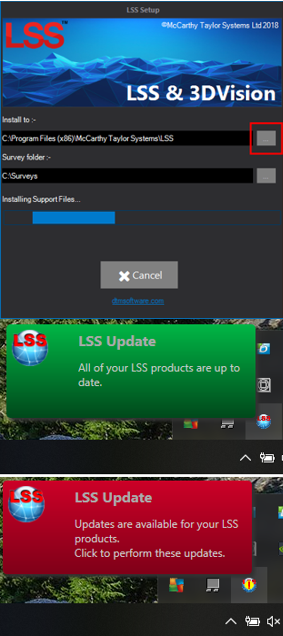
It is not an evaluation copy and does require an LSS dongle in order to run. This download is approximately 200Mb in size and includes test data, bitmap textures for 3D views, a tutorial video viewer, survey instrument installs for Leica and Trimble.

--silent will install LSS into the default path (or existing path if LSS v10 is already installed)
--uninstall will uninstall LSS
If you encounter any problems installing the dongle drivers then we have several alternative solutions. Please click the link below.
If you want to place the LSS dongle on one computer, but access it from another then please click the link below.
Please note that LSS will attempt to check for program updates automatically. A Windows service will run on your computer and check when you log into your computer and at around 12:00pm (local time) every day, when you’re logged-in. If it finds an update to LSS it will display a message (see the images above right). Clicking on this message will initiate the update process. If your IT systems block such activity you will need to keep checking our website for the latest version of LSS, or subscribe to our e-bulletins for monthly news on product developments.
If you are already using LSS v10, but for whatever reason want to reinstall a previous version, then you can do so from here.
Note that unless you choose a different folder to install to, the following versions will overwrite your existing LSS v10 installation (but NEVER your data or settings). Once downloaded, unzip into a new folder and then run ‘MTSL.Setup.exe’. On the first dialogue you will be able to select the install folder.
Download currently not available...
For more detailed information on installing LSS please see our ‘Advanced Help’ pages
If you have any questions or encounter any problems, please contact support


